1 min read
Teams – You can manage Teams Meeting backgrounds
As you know Teams has been allowing end-users to either blur or set a custom background for their meeting.
1 min read
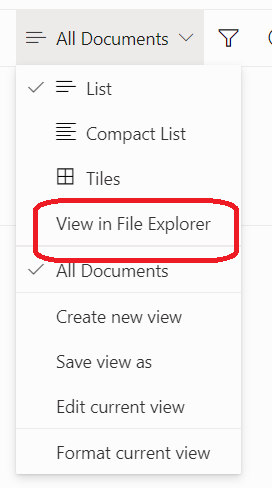
For those who have been working with SharePoint (both on-premises and online) you already know there used to be a ‘View in Explorer’ option to allow you open a document library using Windows Explorer.
This option has been unfortunately long gone.
Good news, you can now have it back.
It is still highly recommended to use the OneDrive for Business client as it provides better performance and experience but some time you still need to use the Explorer View.
First, you need to configure your SharePoint Online tenant to enable the Explorer View.
To do it, you need to run at least the version of the SharePoint Online PowerShell modules (you can download the latest version (16.0.21812.12000 at the time of writing this post) here https://www.microsoft.com/en-us/download/details.aspx?id=35588
Then you can run the below commands to connect to your SharePoint tenant and enable the Explorer view
Connect-SPOService -Url https://<your tenant>-admin.sharepoint.com
Set-SPOTenant -ViewInFileExplorerEnabled $True

Then you need to enable the View in File Explorer policy for Microsoft Edge.
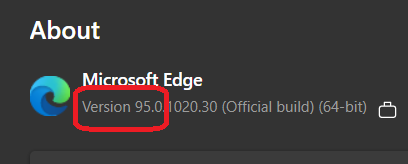
You need to run at least Microsoft Edge build 93
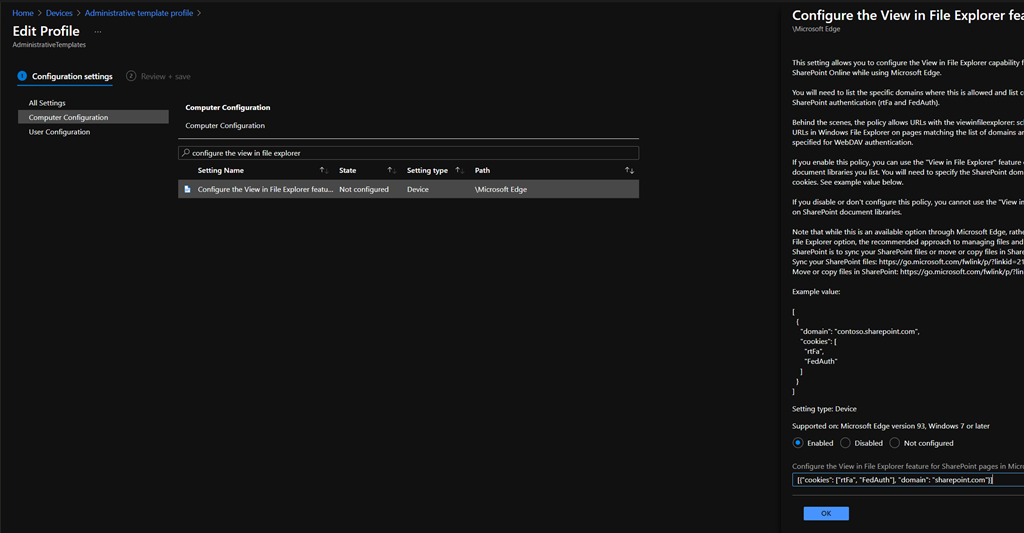
You can configure the policy (Configure the View in File Explorer feature for SharePoint pages in Microsoft Edge) using both Group Policy (you can download the Edge ADMX file from https://www.microsoft.com/en-us/edge/business/download) or Intune/Endpoint Configuration Manager.
When configuring this policy you need to provide your SharePoint tenant (if you want to restrict the use of Explorer View in your tenant) or sharepoint.com (if you want to allow it on any tenant configured for it) using the below code
[{“cookies”: [“rtFa”, “FedAuth”], “domain”: “sharepoint.com”}]
Then once you have refreshed the device configuration you can check if the policy has been successfully applied by accessing the edge://policy/ page


Then new time you access a Document Library you will have the View in File Explorer option from the View menu